Trezor®®® Suite | Official Desktop & Web App for Trezor®®
Explore Trezor Suite to access wallet management features, organize crypto accounts, and review supported digital currencies.
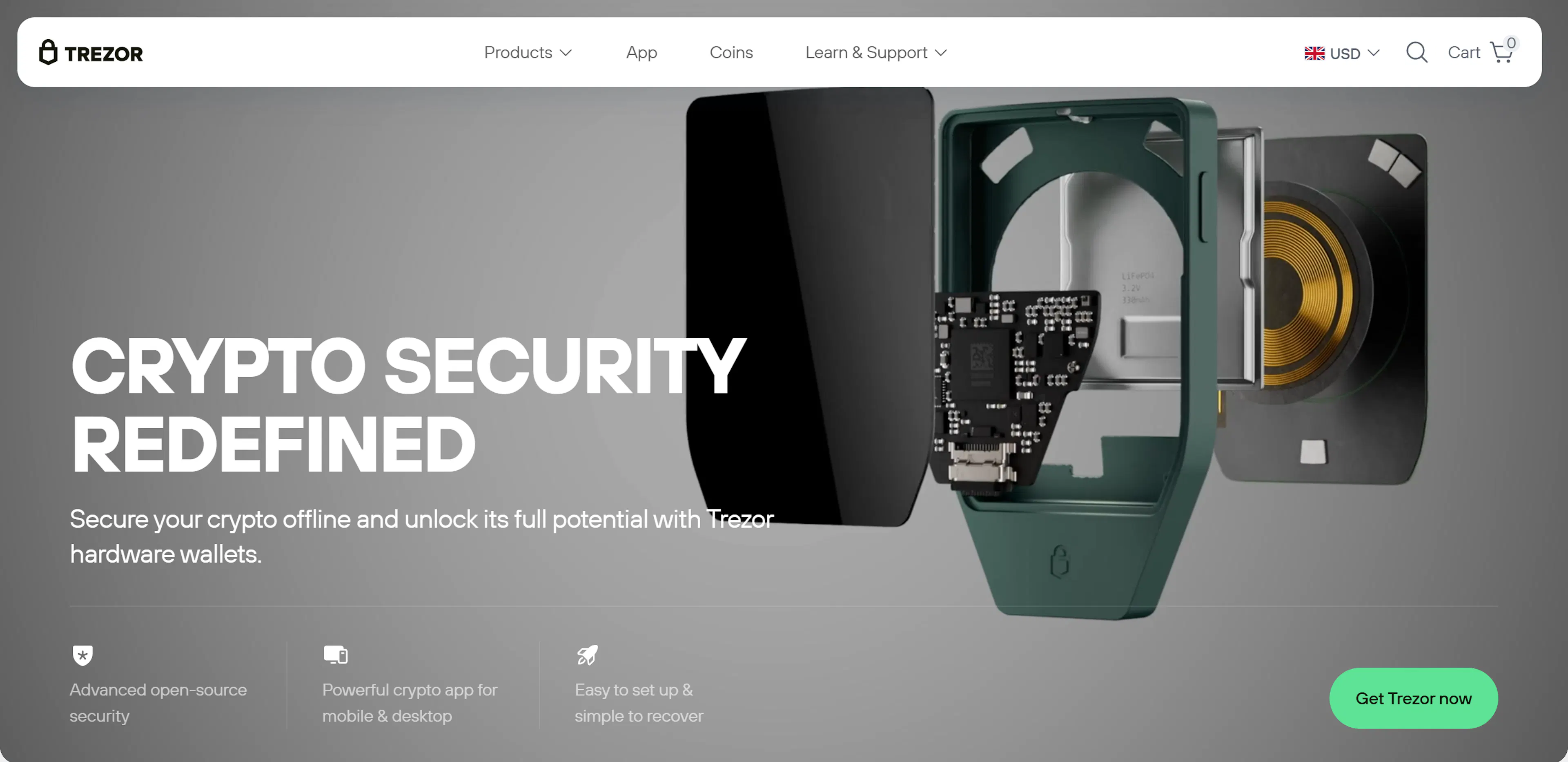
Trezor Suite: Complete Guide to Downloading, Setup, and Cryptocurrency Management
Introduction to Trezor Suite
Managing cryptocurrency securely requires dependable software and careful wallet configuration. Trezor Suite is the companion application designed to work with Trezor hardware wallets. It provides an interface for viewing supported cryptocurrency accounts, monitoring transactions, and managing digital assets.
Whether you are setting up your first hardware wallet or already have experience with cryptocurrency, Trezor Suite offers tools to organize your wallet activities. It works alongside your physical Trezor device, which protects private-key operations and allows you to approve transactions securely.
What Is Trezor Suite?
Trezor Suite is an application developed for managing supported digital assets through compatible Trezor hardware wallets. Users can access it through supported desktop or browser options, depending on their operating system and device.
The application brings several wallet-management functions together in one interface, including account information, transaction history, receiving and sending options, and device settings.
You can access the official software and setup information at:
https://trezor.io/trezor-suite
How to Download and Install Trezor Suite
Step 1: Visit the Official Trezor Website
Open your preferred browser and navigate to the official Trezor Suite page. Verify the website address before downloading any application. Avoid unofficial websites that offer modified wallet software.
Step 2: Choose Your Preferred Version
Review the available options and select the desktop application or supported browser experience. Check the operating-system requirements before proceeding.
Step 3: Download the Application
Use the download option provided on the official Trezor website. Allow the installation file to download completely before opening it.
Step 4: Install Trezor Suite
Open the downloaded installer and follow the instructions displayed on your computer. Once installation is finished, launch the application.
Step 5: Connect Your Hardware Wallet
Connect your compatible Trezor device using a suitable USB cable. Follow the instructions shown in Trezor Suite and on the hardware wallet screen.
Step 6: Complete Device Verification
Follow the authenticity checks provided during setup. If firmware installation or an update is required, complete the process using the official instructions.
Step 7: Create or Recover Your Wallet
Choose whether to create a new wallet or recover an existing one. Follow the instructions appropriate for your device and backup method.
Step 8: Secure Your Wallet Backup
Create your wallet backup according to the instructions for your particular Trezor model. Write down the recovery information and store it securely offline.
Never share your recovery words with anyone or enter them into websites, online forms, emails, or messaging applications.
Important Features of Trezor Suite
1. Portfolio Overview
Review available account balances and portfolio information for supported cryptocurrencies. This helps you understand your wallet activity from one interface.
2. Cryptocurrency Accounts
Organize supported digital assets into separate accounts and access their available information through the application.
3. Sending and Receiving Assets
Use the available tools to prepare transactions and access receiving addresses. Always verify the recipient address and amount directly on your Trezor device before approving a transfer.
4. Transaction History
Review available transaction records to monitor previous transfers and account activity.
5. Device Management
Access supported device settings and follow official instructions for available firmware updates and configuration options.
6. Privacy and Security Options
Explore available privacy-related features and account settings. The options provided may vary by device model and software version.
Security Tips for Trezor Suite Users
Protecting your wallet requires consistent security habits. Follow these recommendations:
- Keep recovery information private: Never share your recovery words with another person.
- Download genuine software: Obtain Trezor Suite only through the official Trezor website.
- Verify transactions: Check transaction details on your hardware wallet before approval.
- Protect your computer: Keep your operating system and security software updated.
- Avoid suspicious links: Be careful with fake support accounts and websites that imitate Trezor.
- Store backups safely: Keep your wallet backup offline in a secure location.
Remember that your recovery information can provide access to your wallet. Treat it as confidential and never disclose it during troubleshooting.
Common Trezor Suite Problems and Solutions
If Trezor Suite does not detect your device, check the USB cable and connection. Try another compatible port, restart the application, and reconnect your hardware wallet.
If an account or asset is not visible, check whether it is supported and whether the appropriate account has been added. For firmware or installation errors, follow the troubleshooting instructions on the official Trezor website.
Avoid downloading unofficial fixes or sharing recovery information with anyone offering technical assistance.
Conclusion
Trezor Suite provides a convenient interface for managing supported cryptocurrency accounts with a compatible Trezor hardware wallet. Its account overview, transaction tools, and device-management options help users organize their digital assets while maintaining control of important security operations.
Visit https://trezor.io/trezor-suite to access the official application and current setup guidance.
Disclaimer: This is independent educational content and is not affiliated with or endorsed by Trezor. Features and compatibility may vary depending on the device model, operating system, and software version.