Trezor®®® Suite | Official Desktop & Web App for Trezor®®
Access Trezor Suite to monitor account activity, manage supported crypto holdings, and keep track of portfolio information.
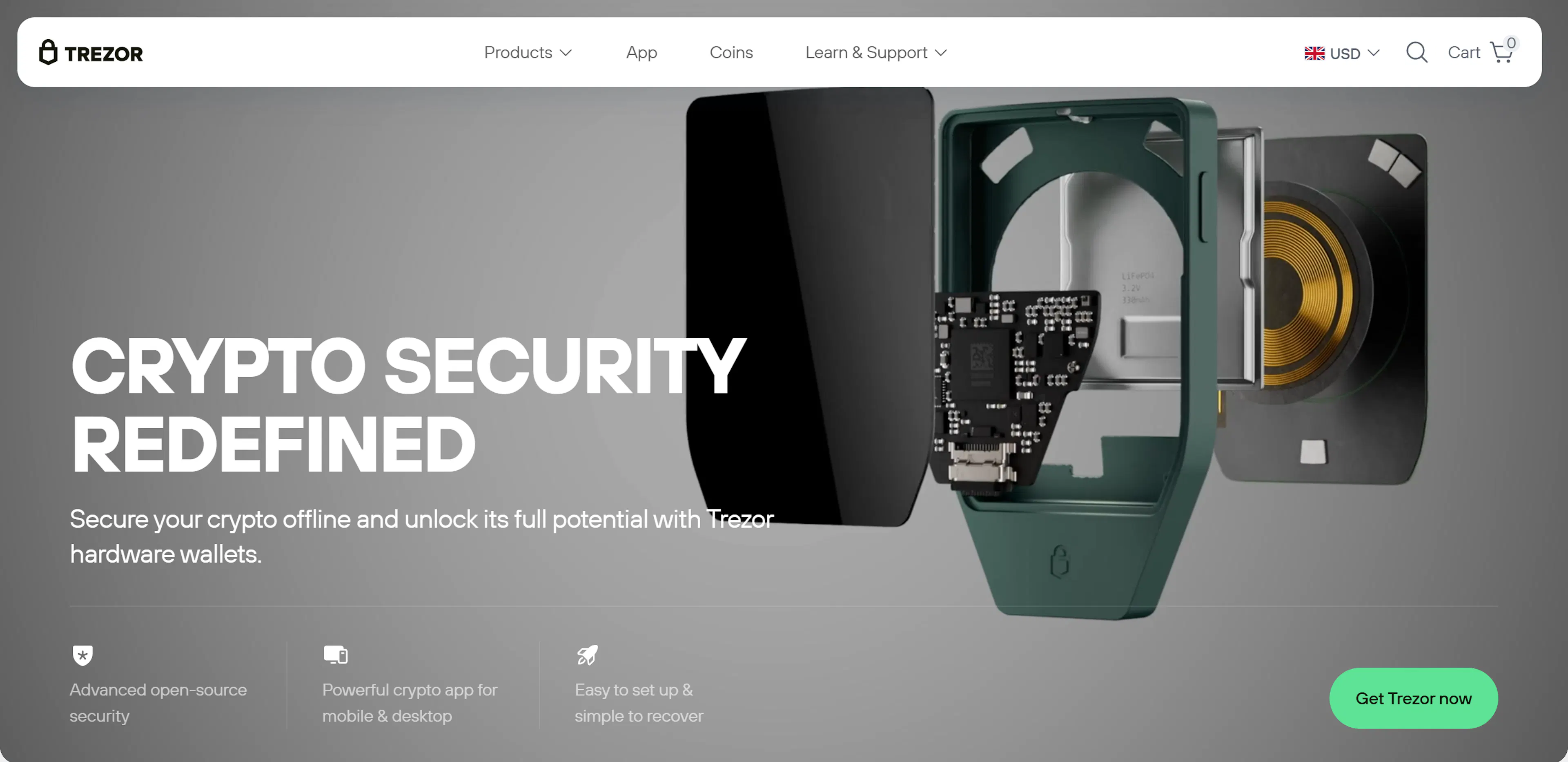
Trezor Suite: Complete Guide to Managing Your Cryptocurrency Hardware Wallet
Introduction to Trezor Suite
Trezor Suite is the official application designed to help users manage their Trezor hardware wallets and supported cryptocurrencies. It provides a convenient interface for viewing account balances, organizing digital assets, reviewing transactions, and accessing various wallet-management features.
Whether you are setting up your first hardware wallet or managing multiple cryptocurrency accounts, Trezor Suite brings important tools together in one application.
The software works alongside a compatible Trezor hardware wallet, which is designed to keep private keys protected on the physical device. Users can review and approve transactions directly through their hardware wallet.
What Makes Trezor Suite Useful?
Trezor Suite combines wallet management, portfolio information, and device settings in a single interface. Its features are designed to make everyday cryptocurrency management easier to understand.
Some important capabilities include:
- Portfolio Overview: View supported cryptocurrency balances and account information.
- Send and Receive: Prepare cryptocurrency transfers and access receiving addresses.
- Account Management: Organize different supported cryptocurrency accounts.
- Transaction History: Review previous transactions and account activity.
- Swap Services: Exchange supported digital assets through available providers.
- Buy and Sell Options: Access integrated services where available.
- Security Settings: Manage supported device and application security options.
Feature availability may depend on your Trezor model, cryptocurrency, software version, and location. <Cite refs={["turn481100search1","turn481100search4"]}/>
How to Download and Install Trezor Suite
Getting started with Trezor Suite is straightforward when you follow the official instructions.
Step 1: Visit the Official Trezor Website
Open your browser and navigate to:
https://trezor.io/trezor-suite
Check the website address carefully before downloading any software. Avoid unofficial websites or third-party installation files.
Step 2: Choose Your Platform
Trezor Suite offers desktop, web, and mobile options. Select the version that matches your device and operating system.
The desktop application is available for supported Windows, macOS, and Linux systems. <Cite refs={["turn481100search2","turn481100search6"]}/>
Step 3: Download and Install the Application
Download the official installation file and follow the instructions for your operating system. Allow the installation to finish before opening the application.
Step 4: Connect Your Trezor Hardware Wallet
Connect your device using a compatible USB cable. Follow the instructions displayed in Trezor Suite and on your hardware wallet.
Step 5: Complete Device Verification
Follow the authenticity checks and setup instructions provided by the application. If firmware installation is required, use the official process for your specific device.
Step 6: Create or Recover Your Wallet
Choose the appropriate option to create a new wallet or recover an existing one. Follow the instructions carefully and secure your wallet backup.
Exploring the Main Features of Trezor Suite
Portfolio and Account Dashboard
The dashboard provides an overview of supported cryptocurrency accounts and portfolio information. Users can review balances and organize their accounts in one place.
Sending and Receiving Cryptocurrency
Trezor Suite provides tools for preparing outgoing transactions and receiving supported digital assets. Before approving a transfer, carefully check the recipient address, network, and amount directly on your hardware wallet.
Transaction History
The transaction section helps users review previous activity and follow available transaction information.
Cryptocurrency Swapping
The swap feature allows users to exchange supported cryptocurrencies through integrated providers. Rates, fees, and availability can vary, so review all transaction details before confirming.
Privacy and Security Settings
Trezor Suite includes available privacy and security options, such as discreet mode, PIN management, passphrase settings, and device-related controls. Availability depends on the device and software version. <Cite refs={["turn481100search1","turn481100search4"]}/>
Important Security Tips for Trezor Suite Users
Protecting your digital assets requires responsible wallet-management habits.
- Download Trezor Suite only from the official Trezor website.
- Keep your device firmware and application updated.
- Store your recovery backup securely and offline.
- Never share your recovery words with anyone.
- Never enter recovery words into websites, desktop applications, or online forms.
- Verify transaction information directly on your Trezor device.
- Avoid suspicious links and fake customer-support messages.
Your recovery backup is extremely important. Anyone who obtains it may be able to access your wallet. Trezor Suite should never ask you to enter your recovery words into the application or a website.
Desktop Version or Web Version: Which Should You Use?
Trezor Suite offers different ways to access wallet-management features.
Desktop Version: The installed application is recommended for regular computer use and provides the full desktop experience.
Web Version: The browser application is available at https://suite.trezor.io/web/. It requires a compatible browser and USB connection. Trezor currently recommends Chromium-based browsers such as Chrome, Edge, Brave, and Opera for this option. <Cite refs={["turn481100search0","turn481100search2"]}/>
Always verify that the address bar shows the genuine Trezor website before connecting your device.
Troubleshooting Common Trezor Suite Issues
Device Not Recognized: Check the USB cable and connection port. Make sure the cable supports data transfer rather than charging only.
Installation Problems: Confirm that the downloaded version matches your operating system.
Account Not Appearing: Check the selected cryptocurrency account and whether the asset is supported.
Transaction Delays: Review the transaction details and relevant blockchain network conditions.
Firmware Questions: Follow the official device-specific instructions and avoid unofficial firmware downloads.
For additional help, visit the official Trezor guides:
https://trezor.io/guides/trezor-suite
Conclusion
Trezor Suite provides a practical way to manage supported cryptocurrency accounts with a compatible Trezor hardware wallet. Its portfolio dashboard, account-management tools, transaction features, and security settings help users organize their digital assets through one interface.
For a safer experience, download the application from official sources, verify every transaction on your hardware wallet, and keep your recovery backup private. Understanding these practices can help you manage cryptocurrency more confidently.
Disclaimer: This article is independently written for educational and informational purposes. It is not an official Trezor publication or endorsement. Features and supported assets may change. Always consult Trezor's official website for the latest product information and instructions.